How to SSH Raspberry Pi Device from Anywhere: A Comprehensive Guide
 Olivia Owen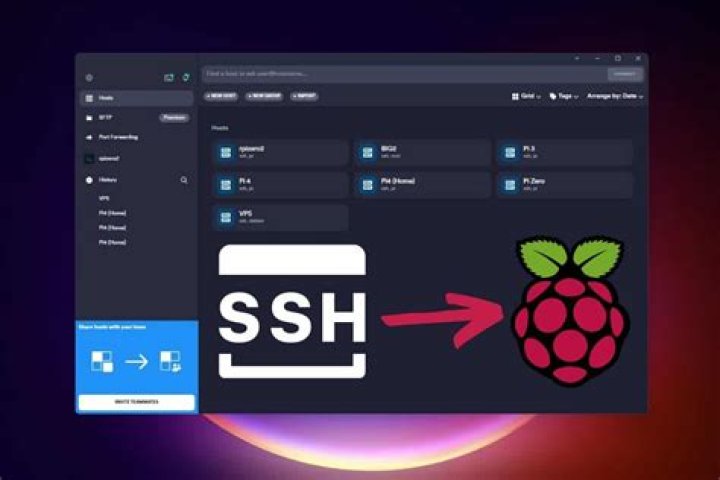
SSH (Secure Shell) is a powerful tool that allows you to remotely access and control your Raspberry Pi device from anywhere in the world. Whether you're a developer, hobbyist, or IT professional, mastering this skill can significantly enhance your productivity and flexibility. In this article, we'll explore how to set up SSH on your Raspberry Pi and access it remotely with ease.
With the increasing demand for remote work and cloud-based solutions, SSH has become an essential tool for managing devices remotely. By enabling SSH on your Raspberry Pi, you can execute commands, transfer files, and manage applications without being physically present near the device.
This guide will walk you through the entire process, from setting up SSH on your Raspberry Pi to troubleshooting common issues. By the end of this article, you'll be equipped with the knowledge and skills to securely connect to your Raspberry Pi from anywhere.
Introduction to SSH
SSH, or Secure Shell, is a cryptographic network protocol designed to provide secure communication over an unsecured network. It is widely used for remote command-line login and data transfer between computers. SSH encrypts all data transmitted between the client and server, ensuring confidentiality and integrity.
When it comes to Raspberry Pi, SSH allows you to access the command-line interface of your device remotely. This is particularly useful if your Raspberry Pi is located in a different physical location or if you want to manage it while traveling.
Why Use SSH for Raspberry Pi?
Using SSH for Raspberry Pi offers several advantages:
- Remote Access: SSH enables you to access your Raspberry Pi from anywhere, as long as both devices are connected to the internet.
- Efficiency: You can manage multiple Raspberry Pi devices simultaneously without the need for physical interaction.
- Security: SSH encrypts all communications, protecting sensitive data from unauthorized access.
- Automation: You can automate tasks and scripts on your Raspberry Pi using SSH commands.
How to Set Up SSH on Raspberry Pi
Enable SSH on Raspberry Pi
Enabling SSH on your Raspberry Pi is a straightforward process. Follow these steps:
- Boot up your Raspberry Pi and log in to the desktop environment.
- Open the Raspberry Pi Configuration tool by navigating to
Preferences > Raspberry Pi Configuration. - Go to the Interfaces tab and select SSH.
- Choose Enable and click OK to save the changes.
Find Your Raspberry Pi's IP Address
To connect to your Raspberry Pi via SSH, you need to know its IP address. You can find it by running the following command in the terminal:
hostname -I
This will display the IP address assigned to your Raspberry Pi. Make sure your Raspberry Pi and the device you're using to connect are on the same local network.
Accessing Raspberry Pi Remotely
Once SSH is enabled, you can access your Raspberry Pi remotely using an SSH client. On Windows, you can use PuTTY, while macOS and Linux users can use the built-in terminal application.
To connect, open your SSH client and enter the following command:
ssh pi@
Replace pi user.
Setting Up Port Forwarding
To access your Raspberry Pi from outside your local network, you need to set up port forwarding on your router. This process involves forwarding incoming SSH traffic (port 22) to your Raspberry Pi's local IP address.
Here's how you can do it:
- Log in to your router's admin interface using a web browser.
- Navigate to the Port Forwarding section.
- Add a new rule, specifying port 22 as the external and internal port.
- Set the internal IP address to your Raspberry Pi's local IP address.
- Save the changes and restart your router if necessary.
Using SSH Clients
There are several SSH clients available for different operating systems. Below are some popular options:
- macOS/Linux: Use the built-in terminal application.
- Windows: Use PuTTY or the Windows Subsystem for Linux (WSL).
- Mobile Devices: Use apps like JuiceSSH (Android) or Serverauditor (iOS).
Each client has its own interface and configuration options, but the basic SSH commands remain the same across all platforms.
Configuring Dynamic DNS
If your internet service provider assigns a dynamic IP address to your router, you may face challenges accessing your Raspberry Pi remotely. To overcome this, you can use a Dynamic DNS (DDNS) service.
DDNS services, such as No-IP or DynDNS, provide a static hostname that automatically updates when your public IP address changes. Follow these steps to configure DDNS:
- Sign up for a DDNS service and create a hostname.
- Install the DDNS client software on your router or Raspberry Pi.
- Configure the client to update your hostname with your current public IP address.
Security Best Practices for SSH
Change the Default SSH Port
Changing the default SSH port (22) can help reduce unauthorized access attempts. To do this:
- Open the SSH configuration file using a text editor:
sudo nano /etc/ssh/sshd_config- Locate the line that says
Port 22and change it to a different port number (e.g., 2222). - Save the file and restart the SSH service:
sudo systemctl restart ssh
Disable Root Login
Disabling root login adds an extra layer of security to your SSH setup. To disable it:
- Open the SSH configuration file:
sudo nano /etc/ssh/sshd_config- Find the line
PermitRootLogin yesand change it toPermitRootLogin no. - Save the file and restart the SSH service:
sudo systemctl restart ssh
Troubleshooting Common Issues
Here are some common issues you might encounter while setting up SSH on your Raspberry Pi and their solutions:
- Cannot Connect to Raspberry Pi: Ensure that SSH is enabled and your Raspberry Pi is connected to the same network.
- Connection Refused: Check your router's port forwarding settings and ensure that the correct port is open.
- Authentication Failed: Double-check your username and password. If you're using a key-based authentication, ensure that the correct key is being used.
Conclusion
In conclusion, SSH is a powerful tool that enables you to remotely access and manage your Raspberry Pi device from anywhere in the world. By following the steps outlined in this guide, you can set up SSH on your Raspberry Pi, configure port forwarding, and implement security best practices to protect your device.
We encourage you to share your experiences and tips in the comments section below. If you found this article helpful, don't forget to share it with your friends and colleagues. For more guides and tutorials on Raspberry Pi and other tech topics, explore our website further!