How to Remotely Connect to Raspberry Pi from PC Using Secure Methods
 Michael Henderson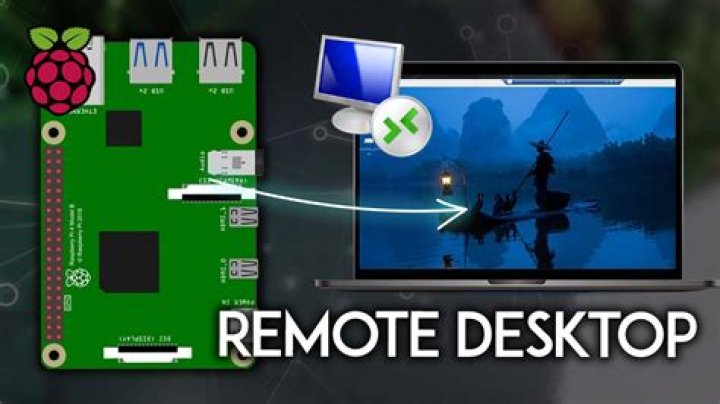
Connecting remotely to a Raspberry Pi from your PC is a practical solution for managing your projects efficiently without requiring physical access to the device. Whether you're a beginner or an advanced user, this guide will walk you through the necessary steps to establish a secure remote connection. With remote access, you can control your Raspberry Pi from anywhere, enabling seamless project management and troubleshooting.
In today's digital age, remote work and remote management have become essential skills for tech enthusiasts and professionals alike. By learning how to remotely connect to Raspberry Pi, you can streamline your workflow and maximize productivity. This article will cover everything you need to know, from setting up your Raspberry Pi for remote access to troubleshooting common issues.
Whether you're using Windows, macOS, or Linux on your PC, we'll provide step-by-step instructions to ensure a smooth setup process. By the end of this guide, you'll have the confidence to connect to your Raspberry Pi remotely and unlock its full potential.
Introduction to Remote Connections
Remote connections allow users to access devices like Raspberry Pi from a distant location, enabling efficient management of hardware and software. The ability to connect to Raspberry Pi remotely is particularly useful for developers, hobbyists, and professionals who require flexibility in their workflow.
There are various methods to remotely connect to Raspberry Pi, with SSH and VNC being the most popular options. Each method offers unique advantages depending on the user's needs and preferences.
In this section, we will explore the basics of remote connections and why they are important for Raspberry Pi users. Understanding the fundamentals will help you choose the right method for your specific use case.
Setting Up Your Raspberry Pi for Remote Access
Step-by-Step Guide to Preparing Your Raspberry Pi
Before you can remotely connect to Raspberry Pi, it's essential to ensure that your device is properly configured for remote access. Follow these steps to set up your Raspberry Pi:
- Install the latest version of Raspberry Pi OS on your device.
- Enable SSH and VNC services in the Raspberry Pi Configuration tool.
- Connect your Raspberry Pi to the same network as your PC.
- Find the IP address of your Raspberry Pi using the terminal command `hostname -I`.
Once your Raspberry Pi is ready, you can proceed to establish a remote connection using the method of your choice.
How to Use SSH to Connect to Raspberry Pi
SSH (Secure Shell) is one of the most secure and reliable methods for remotely connecting to Raspberry Pi. It allows you to access the command-line interface of your Raspberry Pi from your PC.
Steps to Connect via SSH
Here’s how you can connect to Raspberry Pi using SSH:
- Install an SSH client on your PC, such as PuTTY for Windows or use the built-in terminal on macOS and Linux.
- Enter the IP address of your Raspberry Pi in the SSH client and authenticate with your login credentials.
- Once connected, you can execute commands directly on your Raspberry Pi.
SSH is ideal for users who prefer working with the command-line interface and need a secure connection for managing files and configurations.
Using VNC for Remote Desktop Access
VNC (Virtual Network Computing) provides a graphical interface for remotely accessing Raspberry Pi, allowing you to interact with the device as if you were sitting in front of it.
Steps to Connect via VNC
Follow these steps to set up VNC for remote desktop access:
- Install the RealVNC server on your Raspberry Pi from the Raspberry Pi OS settings.
- Download and install the VNC Viewer application on your PC.
- Enter the IP address of your Raspberry Pi in the VNC Viewer and log in with your credentials.
VNC is perfect for users who require a visual interface to manage their Raspberry Pi projects.
Security Measures for Remote Connections
When remotely connecting to Raspberry Pi, it's crucial to prioritize security to protect your device from unauthorized access. Here are some best practices to enhance security:
- Use strong, unique passwords for your Raspberry Pi login credentials.
- Enable two-factor authentication (2FA) if supported by your SSH or VNC client.
- Regularly update your Raspberry Pi OS and installed software to patch vulnerabilities.
- Restrict access to specific IP addresses if possible.
Implementing these security measures will ensure that your Raspberry Pi remains safe and secure during remote sessions.
Troubleshooting Common Issues
While setting up remote connections to Raspberry Pi is generally straightforward, you may encounter some issues. Here are common problems and their solutions:
- Connection Refused: Verify that SSH or VNC services are enabled on your Raspberry Pi and that the IP address is correct.
- Authentication Failure: Double-check your login credentials and ensure that your password meets the security requirements.
- Network Issues: Ensure that both your Raspberry Pi and PC are connected to the same network.
By addressing these common issues, you can successfully establish a remote connection to your Raspberry Pi.
Advanced Methods for Remote Connections
Using SSH Tunnels for Enhanced Security
SSH tunnels provide an additional layer of security by encrypting data transmitted between your PC and Raspberry Pi. This method is particularly useful when connecting to your Raspberry Pi over the internet.
Setting Up a Static IP Address
Assigning a static IP address to your Raspberry Pi ensures that the device always uses the same address, making it easier to connect remotely.
These advanced methods are recommended for users who require higher levels of security and reliability in their remote connections.
Comparison of SSH and VNC
Both SSH and VNC offer unique advantages for remotely connecting to Raspberry Pi. Here's a comparison of the two methods:
- SSH: Ideal for command-line tasks, secure connections, and lightweight operations.
- VNC: Perfect for graphical interface access, visual management, and interactive projects.
Your choice of method will depend on the specific requirements of your project and personal preferences.
Use Cases for Remote Raspberry Pi Connections
Remote connections to Raspberry Pi have a wide range of applications across various fields. Here are some common use cases:
- Home Automation: Manage smart home devices and control systems remotely.
- Server Management: Monitor and maintain Raspberry Pi-based servers from anywhere.
- Development Projects: Test and deploy software applications without physical access.
Exploring these use cases will help you discover new ways to leverage the capabilities of your Raspberry Pi.
Conclusion and Next Steps
In conclusion, learning how to remotely connect to Raspberry Pi from your PC is a valuable skill that can enhance your productivity and expand your project possibilities. By following the steps outlined in this guide, you can confidently establish secure remote connections using SSH or VNC.
We encourage you to share your thoughts and experiences in the comments section below. Additionally, feel free to explore other articles on our website for more tips and tutorials related to Raspberry Pi and remote computing.
References: